Screenshots

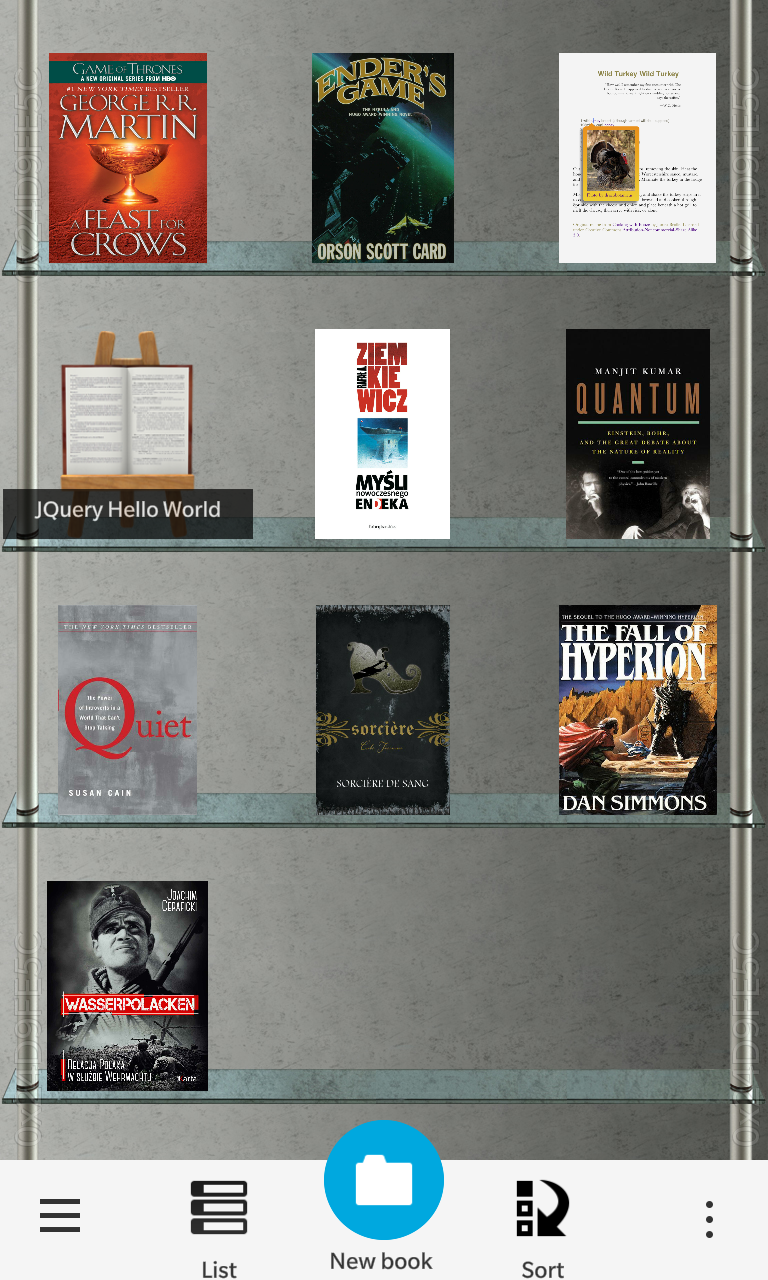
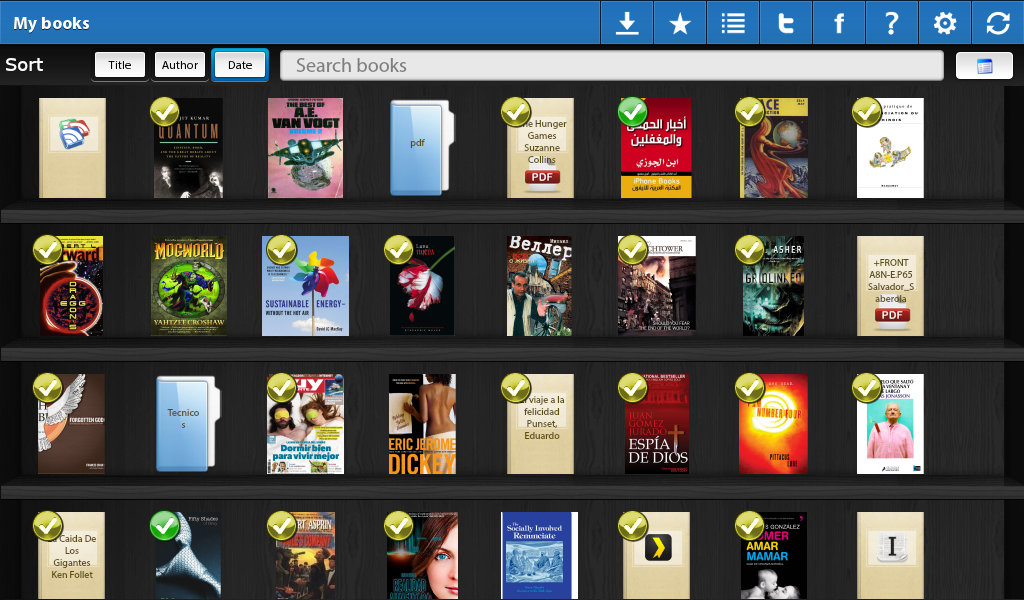
Book list

Leave your books into “downloads“, “books” or “documents” shared folders and PlayEpub will detect all of them. Opened books will be shown with their covers. Just tap to open any of them. Long tap on an opened book to close or on any file to delete.

Read a book

Taping a book in the list will open it in read mode. If you have previously started to read, it wil be opened in the same page you were in. Rotate your PlayBook and reading screen will be rotated too.

Main menu

Main menu in read mode will let you change some presets like font, size and line separation, brighness, day/night/sepia mode. You can also go back to book list or to the book table of contents.

Night Theme

Change to night mode and adjust brightness to easily read at night.

Sepia Theme

Same but whith sepia mode :) .

TOC

If your epub has a TOC, you can navigate through its chapters. Tap any to go.

Read rate and secondary menu

At the end of the screen you have the percentage of the book you have read and taping on it will make a secondary menu appear which lets you navigate to the start and the end of the book, show your bookmarks and notes and jump to any place in the book.

Bookmarks and notes

Make a long-tap on any page to select text and show selection menu: add/del a bookmark, create notes with selected text, copy to clipboard, translate that text and share on Twitter or Facebook. You can move selection marks to hightlight the text you want. If long tap on a text link, you can navigate there.

Text highlight

After adding bookmarks or notes, selected text will be highlighted so as you can identify it. Bookmarks are highlighted with an orange background and you can choose your color for notes.

Network Library navigation and download

You can navigate through some public libraries and download epubs to PlayEpub. You can even add your own libraries, just write the url.

Create your own note

Starting with your selected text you can edit and customize your own note and add voice messages to them.

Bookmarks and notes navigation

Open your bookmarks or notes in the secondary menu and click to go that page in the book.

Jump in the book

Go fast to any percentage you want.

Mail settings

Let PlayEpub download your mailed epub files. Configure Calibre to send your news every morning.

ReaditLater

Let PlayEpub sync your articles on ReaditLater, you will have them as any other book, just open to read, each article is a chapter, even with table of content.


Dictionary

Any word you don’t know the meaning? Use the integrated dictionary. English, Spanish and French languages are supported.

Integrated translator

Translate between many languages without changing your reading.